QtEDM Reference Manual
Robert Soliday
Updated August 2026
Advanced Photon Source
Argonne National Laboratory
Contents
Introduction
QtEDM (Qt Editor and Display Manager) is a modern Qt5/Qt6 reimplementation of MEDM, the classic Motif Editor and Display Manager for EPICS control systems. QtEDM provides a graphical user interface for designing and operating control screens that interact with EPICS process variables through Channel Access (CA), PVAccess (PVA), and configured local data-provider plugins.
Like MEDM, QtEDM uses ADL (ASCII Display List) files to define displays. These files describe the layout, appearance, and behavior of graphical objects that present and/or modify EPICS process variables. Typical widgets include buttons, meters, sliders, text fields, strip charts, Cartesian plots, and QtEDM-specific extensions such as expression channels.
QtEDM operates in two modes:
- EDIT mode – Used to create and modify display (.adl) files
- EXECUTE mode – Renders displays for operators and connects widgets to process variables
Relationship to MEDM
QtEDM is designed as a drop-in replacement for MEDM for the standard MEDM ADL feature set. It reads and writes the same core ADL format, while also supporting a small number of QtEDM-only extensions. The primary differences are:
- Modern GUI toolkit – Qt6 or Qt5 instead of Motif/X11
- Cross-platform runtime – Native Linux, macOS, and Windows builds
- Improved rendering – Better font handling and anti-aliased graphics
- Active development – Ongoing maintenance alongside the legacy MEDM
Both MEDM and QtEDM are built from the same source repository and share the same overall display-model lineage, which keeps the common ADL subset compatible between the two implementations while still allowing QtEDM to add new block types for QtEDM-only widgets.
Requirements
QtEDM requires the following:
- Qt – Qt6 is preferred; Qt5 is supported as a fallback. Core, Widgets, Print Support, SVG, Network, and the matching
moc/rcc development tools are required.
- EPICS Base – Version 7.0 or later, with Channel Access support
- SDDS source tree – Required for the shared support libraries and SDDS plot export
- C++17 compiler – A compiler supported by the selected Qt and EPICS builds
- pkg-config – Used to detect Qt on Linux and macOS
QtEDM builds natively on Linux, macOS, and Windows when the platform Qt,
EPICS Base, SDDS, and compiler dependencies are installed. X11 is not required
for normal QtEDM operation; the -attach and -cleanup
single-instance request options are available only when Qt uses the X11
xcb platform.
Command Line
QtEDM can be executed from the command line in the general form:
qtedm [options] [display-files]
Options are:
| Option |
Description |
-help, -h, -? |
Display usage information and exit |
-version |
Display version information and exit |
-x |
Start in EXECUTE mode (default is EDIT mode) |
--read-only |
Start in EXECUTE mode with global observe-only write inhibition. A persistent red indicator is shown and all CA, PVA, and soft-PV puts are blocked and audit logged. |
--session name |
Explicitly restore a named version-1 session. Session restore defaults to EXECUTE mode, validates every display, reports omissions, and clamps windows to connected screens. |
-local |
Run in local mode (default) |
-attach |
On X11, send requested displays to an existing compatible QtEDM instance |
-cleanup |
On X11, replace stale single-instance request state and become the receiving instance |
-macro "xxx=aaa,yyy=bbb,..." |
Define macro substitutions for PV names in EXECUTE mode |
-dg geometry |
Specify display geometry (WxH+X+Y format) |
-displayGeometry geometry |
Long-form alias for -dg |
-displayFont alias|scalable |
Select font mode: alias (MEDM-compatible) or scalable |
-noMsg |
Do not raise the message window on startup |
-nolog |
Disable audit logging of control widget value changes |
-bigMousePointer |
Use a larger mouse pointer for accessibility |
-cmap |
Use a private colormap (compatibility option) |
Examples
Start QtEDM with a display in execute mode:
qtedm -x main.adl
Start with macro substitutions:
qtedm -x -macro "P=ioc1:,R=motor1" motor.adl
Open multiple displays:
qtedm -x display1.adl display2.adl display3.adl
Remote Display via SSH
When running QtEDM over an SSH connection with X11 forwarding, it is highly recommended to use the -C option to enable compression. This significantly improves display update performance and provides a smoother experience, especially when monitoring rapidly changing process variables.
ssh -C -X user@host
qtedm -x display.adl
The -C option compresses all data sent over the SSH connection, which reduces the bandwidth required for X11 protocol traffic. Without compression, high-frequency widget updates can overwhelm the connection and cause sluggish or jerky display behavior.
-attach and -cleanup use an X11 root-window request
protocol and fall back to local mode on Wayland, macOS, and Windows.
Modes of Operation
EDIT Mode
In EDIT mode, QtEDM functions as a display editor. You can:
- Create new displays or open existing ADL files
- Add, select, move, resize, and delete widgets
- Edit widget properties through the Resource Palette
- Copy, cut, and paste widgets
- Group widgets into composites
- Save displays to ADL files
- Toggle grid display and snap-to-grid
The Object Palette provides access to all available widget types. Click on a widget type, then click and drag on the display to create a new widget.
EXECUTE Mode
In EXECUTE mode, QtEDM connects to EPICS and displays live process variable data. Widgets become interactive:
- Monitor widgets display current PV values
- Control widgets allow operators to modify PV values
- Dynamic attributes change widget appearance based on PV values
- Related Display buttons open additional screens
- Shell Command buttons execute system commands
When QtEDM starts without -x, use the Edit/Execute selector in
the main window to change modes. A command-line EXECUTE launch locks the
selector for that process. Ctrl+X remains the standard Cut shortcut
in EDIT mode; it is not a mode switch.
Supported Widgets
QtEDM supports the complete MEDM widget set plus QtEDM-specific
extensions. The sections below expand the brief object list into a practical
reference: what each widget is for, the properties that matter most, and a
representative screenshot.
The screenshots in this section were captured from dedicated
documentation ADL example files in docs/images/adl. Most are
rendered in EDIT mode; monitor examples that need live state coloring may be
captured in EXECUTE mode using local soft-PV fixtures. They are intended to
show geometry, styling, labeling, and available variants in a reproducible
way.
Common Widget Concepts
- Geometry and stacking – Every widget has an ADL object rectangle. In EDIT mode this rectangle controls selection, resizing, and stacking order.
- Channels – Monitor widgets subscribe to one or more PVs. Controller widgets write to PVs. Graphics widgets can also use channels for dynamic color and visibility. QtEDM expression channels can additionally publish process-local soft PVs that other widgets consume by name.
- Dynamic attributes – Many widgets support alarm-sensitive colors, discrete color rules, and visibility driven by a PV or a calculation.
- Limits and precision – Numeric widgets can use display/alarm/control limits from the PV, or explicit values stored in the ADL.
- Macros and protocols – PV names may contain macro substitutions such as
$(P). QtEDM also accepts pva:// PV prefixes when PVAccess is required.
- Audit logging – When logging is enabled, built-in controller, plugin-provider, and snapshot-restore writes are recorded in the audit log.
Graphics
Rectangle
Rectangles are the basic building block for panels, frames, alarm tiles,
background fills, and simple status regions. In EXECUTE mode they are
monitor-only; any behavior comes from dynamic color or visibility rules.
- Configure: Fill or outline, line width, line style, and foreground color.
- Use when: You need borders, grouping panels, color blocks, or a simple dynamic alarm indicator.
- Dynamic support: Color and visibility can follow alarm state, discrete PV values, or a visibility calculation.
Oval
Ovals provide circular or elliptical graphics with the same styling model as
rectangles. They are commonly used for lamps, indicator bodies, and
schematic symbols that should respond to process state.
- Configure: Fill, outline width, dash style, and color.
- Use when: A round or elliptical symbol reads more clearly than a rectangular region.
- Dynamic support: Alarm/discrete color and visibility handling matches the other graphic primitives.
Arc
Arcs draw partial ellipses. They can be open outlines or filled wedge-style
shapes and are useful for gauges, directional annotations, and process
diagrams that need something more specific than a full oval.
- Configure: Begin angle, path angle, fill mode, line width, and line style.
- Use when: You need sweep indicators, partial rings, or filled sectors.
- Dynamic support: The same color and visibility rules available to other graphic widgets also apply here.
Line
Use a Line when you need a straight connection segment, pointer, or border
detail. A simple line is the two-point case of the polyline data model, so
line and polyline styling stay consistent.
- Configure: Endpoints, line width, dash style, and arrow decorations.
- Use when: You need simple directional marks, separators, or wiring runs on a schematic.
- Dynamic support: Color and visibility can still be driven by PV state.
Polyline
Polylines are connected line segments with arbitrarily many vertices. They
are the right choice for piping runs, beam lines, and other paths that must
bend without becoming filled areas.
- Configure: A vertex list, line width, dash style, and optional arrow heads.
- Use when: The path is not straight but should remain an open line rather than a closed polygon.
- Edit behavior: In EDIT mode individual vertices can be repositioned to reshape the path.
Polygon
Polygons represent closed multi-sided shapes. They are useful for arrows,
custom equipment outlines, filled regions with irregular boundaries, and
symbols that cannot be expressed as rectangles or ovals.
- Configure: Vertex list, fill mode, line width, line style, and color.
- Use when: You need a closed custom shape with either fill or outline rendering.
- Dynamic support: Visibility and color rules work the same way as for the other graphic primitives.
Text
Text widgets provide static labels, titles, engineering notes, and screen
annotations. They are not tied to PV updates and are intended for fixed
wording that helps operators interpret the rest of the display.
- Configure: String content, alignment, color, and font sizing through the display font model.
- Use when: You need headings, units, labels, instructions, or other non-changing text.
- Tip: Static text is often paired with monitor widgets so the label remains stable while the readback changes.
Image
The Image widget displays file-backed graphics such as GIFs and other Qt
image formats. It is useful for logos, equipment symbols, and any case where
a drawn primitive would be too limited.
- Configure: Image file name, image type, optional dynamic visibility, and optional calculation support.
- Use when: A raster image or animated GIF communicates state more effectively than basic shapes.
- Practical note: Keep referenced image files on the display path or use an explicit file path so operators see the same asset everywhere.
Composite
A Composite groups multiple child widgets into a single higher-level object.
This is useful when a display repeatedly reuses the same local assembly of
labels, indicators, and controls.
- Configure: Composite bounds, optional dynamic attributes, and the child widget list.
- Use when: Several widgets should move, copy, stack, or be shown/hidden together.
- Layering note: QtEDM preserves each composite's internal child stacking while also treating the composite itself as one top-level object.
Monitors
Text Monitor
Text Monitor is the standard readback widget for scalar or string PVs. It
displays the current value as text and can format the value for operator
readability without allowing writes.
- Configure: Channel, display format, alignment, foreground/background colors, and optional limits handling.
- Use when: The exact PV value matters more than a graphical metaphor.
- Runtime behavior: Text and color update as new monitor events arrive; no operator interaction is accepted.
Expression Channel
Expression Channel is a QtEDM-only logical monitor widget that evaluates an
EPICS calc expression over up to four input channels and publishes the result
as a process-local soft PV. In EDIT mode it appears as a compact labeled
rectangle so it can be selected and configured. In EXECUTE mode it becomes
invisible and runs only as a calculation/publishing node.
- Configure: Variable name, calc expression, Channel A through Channel D, initial value, event signal mode, foreground/background colors, and precision.
- Use when: You need a local derived value, threshold signal, fan-out source, or chained calculation inside QtEDM without adding IOC-side logic.
- Runtime behavior: On execute start QtEDM publishes the initial value, subscribes to the input channels, evaluates the calc expression with the built-in EPICS calc engine, and republishes results according to the selected event signal mode.
- Consumption model: Other widgets subscribe by using the expression channel's
variable name as their normal channel name. If variable is left blank, QtEDM auto-generates a private name suitable for internal logic but not for convenient manual subscription.
Bar Monitor
Bar Monitor turns a scalar PV into a filled bar graph. It is one of the
clearest ways to show level, percentage, position, or any value that should
be interpreted relative to a range.
- Configure: Orientation, fill direction, colors, labels, and operating limits.
- Use when: Operators should judge magnitude at a glance rather than read precise numbers.
- Runtime behavior: The filled region follows the monitored value but the widget remains read-only.
Thermometer
Thermometer is a QtEDM-only monitor widget that presents a scalar PV as a
thermometer-style fill. It provides a more literal physical metaphor than a
generic bar graph.
- Configure: Value channel, visual styling, displayed value text, and static or PV-sourced limits.
- Use when: A long vertical readout matches the process concept better than a bar or text field.
- Compatibility: Thermometer is a QtEDM extension and is not backward compatible with MEDM.
Byte Monitor
Byte Monitor breaks an integer PV into visible bit states. It is especially
useful for status words, interlocks, mode fields, and hardware flags where
individual bits are meaningful to operators.
- Configure: Channel, bit orientation, start/end bit range, and colors.
- Use when: The operator needs to inspect multiple boolean states encoded inside one PV.
- Runtime behavior: Bit cells update independently as the underlying integer value changes.
LED Monitor
LED Monitor is a QtEDM-only compact status lamp. It is intended for cases
where a single small shape should communicate connection, alarm state, or a
discrete integer state more directly than a full bar, meter, or layered
graphic composite.
- Configure: Channel, color mode, shape, bezel, foreground/background colors, on/off/undefined colors, state count, and per-state colors.
- Use when: You need a compact lamp for binary status, alarm indication, or MBBI-style multi-state readback.
- Runtime behavior: In EXECUTE mode the LED can hold a static color, follow EPICS alarm severity, or map integer values to up to 16 configured colors.
| Property |
Purpose |
channel |
The PV or soft-PV driving the LED state. |
colorMode |
static, alarm, or discrete. |
shape |
circle, square, or rounded_square. |
bezel |
Enables the lamp-style raised ring and highlight. |
onColor / offColor |
Convenience colors for binary-style usage and edit-mode previews. |
undefinedColor |
Fallback color for disconnects or out-of-range discrete states. |
stateCount / stateColorN |
Configures the discrete color table for integer states 0 through 15. |
visibilityMode, visibilityCalc, visibility channels |
Optional hide/show behavior matching the other dynamic widgets. |
led_monitor {
  object {
    x=60
    y=110
    width=24
    height=24
  }
  monitor {
    chan="device:state"
    clr=25
    bclr=4
  }
  colorMode="discrete"
  shape="rounded_square"
  bezel=1
  stateCount=4
  stateColor0=12
  stateColor1=15
  stateColor2=33
  stateColor3=20
  undefinedColor=7
}
Multi-State Symbol
Multi-State Symbol is a QtEDM extension stored as
qtedm_symbol. It maps numeric values or inclusive ranges to a
color, label, and optional image. Undefined values and disconnected channels
remain visibly hatched, while active alarms add a severity-colored border.
- Configure: Use the LED resource palette for the channel and colors, then choose QtEDM Extension Properties... from the edit context menu for ranges, labels, and image paths.
- Compatibility: The object is a separate QtEDM extension and never changes the meaning of a MEDM object.
Tabbed Display
Tabbed Display is a QtEDM extension stored as
qtedm_tabbed_display. Each page has a stable ID, label,
file-backed child ADL, page macros, and a keepAlive policy.
Page macros override inherited parent macros.
- Configure: Create the object from the Containers section, then double-click it in EDIT mode to edit its page table.
- Runtime behavior: The active child is loaded on demand. Inactive pages are destroyed and unsubscribe by default;
keepAlive=true retains a loaded page. Ctrl+PageUp and Ctrl+PageDown navigate pages.
- Stacked mode: Set
mode="stacked" to hide the tab bar while retaining keyboard or programmatic page selection.
- Diagnostics: Missing child files and recursive references produce visible page errors.
- Compatibility: Child files remain ordinary ADLs. The container block is a QtEDM-only extension and does not reinterpret MEDM objects.
Heatmap
Heatmap is a QtEDM-only 2-D array monitor. It renders a waveform or array PV
as a color image and can derive the X and Y dimensions from either fixed
values or additional PVs.
- Configure: Data PV, X/Y dimensions, dimension source, color map, flips, rotation, aspect ratio, and optional top/right profiles.
- Use when: A 2-D image or matrix communicates structure that would be lost in a 1-D plot.
- Runtime behavior: In EXECUTE mode QtEDM supports zooming, panning, and profile displays; MEDM does not support this widget.
PV Table
PV Table is a QtEDM-only read-only monitor for a small list of related
PVs. Each configured row subscribes independently and can show the row label,
PV name, current value, engineering units, and alarm severity in a single
compact table.
- Configure: Row labels and channels, static or alarm color mode, header visibility, and the displayed column set.
- Use when: Operators need to compare several scalar, enum, or string PVs without building separate text monitors for each one.
- Runtime behavior: Rows update independently. Alarm color mode applies each row's alarm severity to its displayed text while disconnected rows remain visible.
- Compatibility: PV Table is a QtEDM ADL extension and is not backward compatible with MEDM.
| Property |
Description |
columns | Comma-separated subset of label, pv, value, units, and severity. |
colorMode | static or alarm foreground coloring. |
showHeaders | Shows or hides the table column headers. |
fontSize | Manual table font size using MEDM legacy font-size units. In alias font mode, QtEDM uses the nearest larger MEDM alias when available and falls back to a scalable font for larger requested sizes. |
row | One table row with a label and monitored chan. |
Example ADL fragment:
pv_table {
  object { x=40 y=80 width=620 height=160 }
  "basic attribute" {
    clr=14
    bclr=4
  }
  colorMode="alarm"
  showHeaders=1
  fontSize=12
  columns="label,pv,value,units,severity"
  row {
    label="Beam Current"
    chan="BPM:CURRENT"
  }
  row {
    label="Mode"
    chan="BPM:MODE"
  }
}
Waveform Table
Waveform Table is a QtEDM-only read-only table monitor for a single waveform
or array PV. It is intended for exact sample inspection: operators can see
the current element values, indexes, connection state, received length, and
alarm-driven foreground color without turning the waveform into a plot.
- Configure: Channel, static or alarm color mode, header visibility, row/column/grid layout, column count, maximum displayed elements, zero- or one-based indexes, value format, and char waveform display mode.
- Use when: The individual sample values matter more than waveform shape, or when a char waveform should be inspected as text, ASCII cells, byte values, or numeric byte values.
- Runtime behavior: Numeric waveforms are displayed as sample cells; enum values use enum labels when available; string PVs display as text; char arrays can display as one string or as per-byte cells.
- Dynamic support: Waveform Table supports static and alarm color mode. MEDM-style dynamic visibility blocks are not implemented for this widget;
wave_table dynamic attribute blocks are ignored.
| Property |
Description |
chan | Waveform, array, or scalar fallback PV to monitor. |
layout | grid, row, or column sample arrangement. |
columns | Grid column count. Column layout always shows Index and Value columns. |
fontSize | Manual table font size using MEDM legacy font-size units. In alias font mode, QtEDM uses the nearest larger MEDM alias when available and falls back to a scalable font for larger requested sizes. |
maxElements | Maximum displayed samples. A value of zero allows the runtime default limit. |
indexBase | Index labels start at zero or one. |
valueFormat | default, fixed, scientific, hex, or engineering numeric formatting. |
charMode | string, bytes, ascii, or numeric display for char waveforms. |
Example ADL fragment:
wave_table {
  object { x=40 y=80 width=520 height=220 }
  "basic attribute" {
    clr=14
    bclr=4
  }
  chan="BPM:WAVEFORM"
  colorMode="alarm"
  showHeaders=1
  fontSize=12
  layout="grid"
  columns=8
  maxElements=256
  indexBase=0
  valueFormat="default"
  charMode="string"
}
Waterfall Plot
Waterfall Plot is a QtEDM-only monitor for waveform-versus-time data. It sits
between Cartesian Plot, which shows the
current waveform as traces, and Heatmap, which
renders a single 2-D array. Each new waveform becomes one time slice in the
rolling buffer.
- Configure: Data, count, trigger, and erase PVs; history depth; scroll direction; color map; intensity scaling; labels; legend; grid; and time units.
- Use when: Operators need to see how a profile, spectrum, or other 1-D distribution evolves over time.
- QtEDM additions: EXECUTE mode supports wheel zoom on the time axis, drag pan while zoomed, hover readback, and export of images or buffered waveform data.
| Property |
Description |
dataChannel | Waveform PV. Each monitor update adds one sample to the waterfall. |
countChannel | Optional PV supplying the active waveform length when the array is only partially populated. |
triggerChannel | Optional PV used to trigger sampling of the most recent waveform update. |
eraseChannel | Optional PV used to clear the rolling buffer when the configured erase transition occurs. |
eraseMode | Controls whether a zero or non-zero transition clears the buffer. |
title, xLabel, yLabel | Plot title and axis labels. |
historyCount | Number of waveform samples retained in the rolling buffer. |
scrollDirection | Chooses where new samples appear: top, bottom, left, or right. |
colorMap, invertGreyscale | Intensity palette selection, reusing the Heatmap color maps. |
intensityScale, intensityMin, intensityMax | Auto, manual, or logarithmic intensity scaling for the image and legend. |
showLegend, showGrid | Optional legend bar and faint axis grid overlay. |
samplePeriod, units | Optional fixed sample spacing used for time-axis labeling and data export when timestamps are not available. |
foreground, background | Colors used for labels, axes, and the plot background. |
Example ADL fragment:
waterfall_plot {
  object { x=40 y=40 width=320 height=220 }
  plotcom {
    title="Beam Profile vs Time"
    xlabel="Position (mm)"
    ylabel="Time (s)"
    clr=14
    bclr=0
  }
  data { chan="BPM:WAVEFORM" }
  count { chan="BPM:NUSE" }
  trigger { chan="BPM:TRIG" }
  erase { chan="BPM:ERASE" mode="ifnotzero" }
  historyCount=200
  scrollDirection="topToBottom"
  colorMap="rainbow"
  intensityScale="auto"
  showLegend=1
  showGrid=0
  samplePeriod=0
  units="seconds"
}
Right-clicking a Waterfall Plot in EXECUTE mode adds Save Image...,
Save Data..., Clear Buffer, and
Reset Zoom when zoom is active.
Scale Monitor
Scale Monitor is a compact analog-style readback widget combining a ruler,
tick marks, and a moving indicator. It works well when a bar monitor feels
too heavy but text alone is not visual enough.
- Configure: Orientation, pointer direction, labels, limits, logarithmic or linear behavior, and colors.
- Use when: You need a compact gauge that still shows position relative to a scale.
- Runtime behavior: The indicator and optional numeric text move with the monitored value.
Meter
Meter presents a scalar PV as an analog dial. It is useful for displays that
benefit from a familiar instrument-panel look or when operators prefer to
recognize direction and magnitude from needle position.
- Configure: Channel, dial range, labels, colors, and limits.
- Use when: A needle gauge is the clearest mental model for the operator community using the screen.
- Runtime behavior: The meter is monitor-only and redraws the needle as values change.
Strip Chart
Strip Chart trends one or more PVs against time. It is the standard widget
for short-term history, quick diagnostics, and operator displays that need to
show whether a signal is stable, drifting, or oscillating.
- Configure: Trace PVs, colors, update rate, time span, trigger/erase behavior, and axis labels.
- Use when: Recent history matters more than the current value alone.
- QtEDM additions: The EXECUTE-mode context menu supports data export to SDDS or CSV.
Archive Plot
Archive Plot is a QtEDM-only historical variant of Strip Chart stored as
qtedm_archive_plot. On entering EXECUTE mode it requests each
configured pen's current time window from the selected archive provider and
continues subscribing to the live PV.
- Configure: Use the normal Strip Chart properties for pens and time span. QtEDM Extension Properties adds the maximum historical point count and whether live samples are merged after history loads.
- Built-in provider: Set
QTEDM_ARCHIVER_URL to an EPICS Archiver Appliance retrieval root. The request is bounded by time, response size, timeout, and maximum points.
- Plugin provider: Set
QTEDM_ARCHIVER_PROVIDER to a registered archive-provider ID. Empty or archiver-appliance selects the built-in provider.
- Failure behavior: A missing provider, timeout, invalid response, or empty history is shown as a plot diagnostic; live plotting continues.
Cartesian Plot
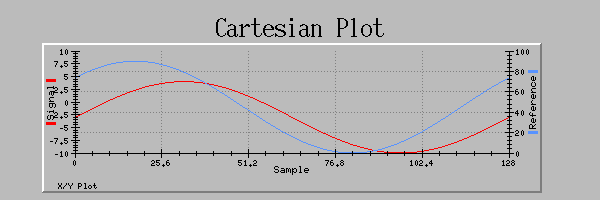
Cartesian Plot is the most flexible plotting widget in QtEDM. It can show
Y-only traces against sample index or true X-Y data, and it supports multiple
traces with independent axis assignments.
- Configure: X and Y PVs, trace colors, symbols, line styles, axis ranges, and labels.
- Use when: The display needs waveform, orbit, scan, or correlation data rather than simple time history.
- QtEDM additions: EXECUTE mode supports mouse-wheel zoom, drag pan, axis editing, and data export.
QtEDM-only note: Heatmaps, waterfall and
archive plots, tables, symbols, tabbed displays, expression channels, and the
other QtEDM extensions in this section use additional ADL block types. Legacy
MEDM can continue to use the shared core subset, but it does not provide runtime
support for QtEDM-only blocks. See ADL Files for the
complete extension list.
Controllers
Text Entry
Text Entry allows an operator to type a value and write it to a PV. It is
the most direct control widget when precise numeric or string input matters
more than constrained stepwise adjustment.
- Configure: Control PV, colors, alignment, font sizing, and limits/format behavior.
- Use when: Operators need exact typed input rather than a gesture-based control.
- Runtime behavior: The widget accepts keyboard entry only in EXECUTE mode and its writes are audit logged when logging is enabled.
Text Area
Text Area is the multi-line companion to Text Entry. It is intended for
long strings and waveform-backed text, preserving embedded line breaks while
still allowing operator edits in EXECUTE mode.
- Configure: Control PV, colors, format, wrap mode, scroll bars, commit behavior, tab handling, and font family.
- Use when: Operators need to read or edit longer text blocks than fit in a single-line entry widget.
- Runtime behavior: Local edits stay buffered until commit, incoming updates do not overwrite dirty text, and writes are audit logged.
- Commit behavior: Ctrl+Enter, Enter, focus-loss, and explicit context-menu commit modes are available. A dirty marker appears while local edits are pending.
- PV compatibility: Char-waveform PVs and long-string
$ field access preserve multi-line text. Regular DBR_STRING channels fall back to single-line editing and may truncate writes at the EPICS 40-byte limit.
Slider
Slider provides a drag-based numeric control. It is well suited to setpoints
and analog adjustments where the operator thinks in terms of moving a value
within a bounded range.
- Configure: Orientation, channel, limits, labels, colors, and scale appearance.
- Use when: Smooth adjustment is more natural than typing a number.
- Runtime behavior: Interaction is live in EXECUTE mode and writes are included in audit logs.
Wheel Switch
Wheel Switch is a precision numeric entry widget in which each digit can be
incremented or decremented independently. It is ideal for control rooms where
operators want explicit control over significant digits.
- Configure: Channel, number of digits, precision, colors, and limits.
- Use when: Fine-grained numeric entry is common and accidental large jumps must be avoided.
- Runtime behavior: Digits can be stepped interactively in EXECUTE mode; writes are audit logged.
Choice Button
Choice Button presents a small fixed set of states as visible buttons rather
than hiding them in a drop-down. It is most useful for enum-like PVs where
the operator should always see the available choices.
- Configure: Control PV, button labels from the underlying enum/discrete mapping, color mode, and geometry.
- Use when: Immediate visibility of the valid states matters more than conserving space.
- Runtime behavior: Clicking a choice writes the selected state and the action is audit logged.
Menu
Menu is the compact alternative to Choice Button. It exposes the current
value in a drop-down control and is appropriate when the state list is longer
or screen real estate is limited.
- Configure: Control PV, colors, labels, and the geometry of the menu control.
- Use when: The operator needs selection capability but the display should stay visually compact.
- Runtime behavior: Selecting an item writes the new value and the write is audit logged.
Message Button
Message Button writes a predefined value when activated. It is the right
widget for command actions such as Start, Stop, Reset, Open, Close, or
acknowledgement operations.
- Configure: Target PV, button label, and the value written on activation.
- Use when: The control action is semantic rather than numeric and should look like a button.
- Runtime behavior: EXECUTE-mode clicks perform writes immediately and are included in the audit log.
Toggle
Toggle is a compact two-state QtEDM control stored as
qtedm_toggle. It follows the current PV value, writes explicit
on/off values, uses independent state labels, and can require confirmation
before each write. Scalar, enum, string, and character-array targets use the
same typed write path as Message Button.
Common colors, channel, and values are editable through the resource
palette. State labels and confirmation are available through
QtEDM Extension Properties....
Spin Box
Spin Box is a bounded numeric QtEDM control stored as
qtedm_spinbox. It adds autorepeating decrement and increment
buttons to the existing setpoint implementation and therefore inherits PV
control limits, precision, engineering units, alarm color, connection state,
access rights, and audit logging. The step size is edited with
QtEDM Extension Properties....
Setpoint Control
Setpoint Control is a QtEDM-only numeric controller stored as
setpoint_control. It combines an editable setpoint, optional
readback, and an in/out-of-tolerance indication in one widget.
- Configure: Setpoint and readback PVs, label, numeric format, precision and limits, static/alarm color mode, absolute tolerance, and readback visibility.
- Runtime behavior: Entering a value validates numeric input and configured/channel limits before writing. Connection state, access rights, pending edits, units, and readback tolerance remain visible.
- Safety: The setpoint PV must be numeric and writable. Writes pass through observe-only policy and are audit logged.
setpoint_control {
  object {
    x=40 y=40 width=300 height=54
  }
  "basic attribute" {
    clr=14 bclr=4
  }
  label="Temperature"
  setpoint="HEATER:SP"
  readback="HEATER:RBV"
  colorMode="alarm"
  toleranceMode="absolute"
  tolerance=0.5
}
Related Display
Related Display is a navigation widget rather than a direct PV writer. It
opens one or more ADL files and can pass macro substitutions so downstream
displays inherit the current device or subsystem context.
- Configure: Target display files, button label, open/replace behavior, and macro strings.
- Use when: A high-level display needs drill-down links to more detailed screens.
- Runtime behavior: Clicking opens the configured display set; no PV write is performed by the widget itself.
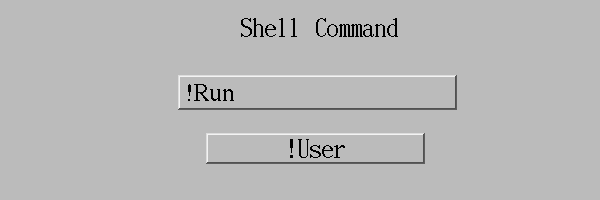
Shell Command
Shell Command launches external commands from a display button. It is useful
for opening helper tools, diagnostic scripts, or file viewers that sit
outside the ADL display itself.
- Configure: Button label plus one or more commands and arguments.
- Use when: The operator workflow needs to hand off to an external program instead of writing a PV.
- Operational note: Prefer explicit paths and predictable environment setup because commands run in the operator's local session context.
Environment Variables
QtEDM uses the following environment variables:
| Variable |
Description |
EPICS_DISPLAY_PATH |
Platform-separated list of directories to search for ADL files and referenced images (: on Unix, ; on Windows) |
EPICS_CA_ADDR_LIST |
EPICS Channel Access address list |
EPICS_CA_AUTO_ADDR_LIST |
Enable/disable automatic CA address discovery |
QTEDM_AUDIT_DIR |
Optional audit-log directory override. The default remains ~/.medm. |
QTEDM_ARCHIVER_URL |
EPICS Archiver Appliance retrieval root used by archive-backed plots. |
QTEDM_ARCHIVER_PROVIDER |
Archive-provider plugin ID. Empty or archiver-appliance selects the built-in provider. |
QTEDM_PLUGIN_PATH |
Platform-separated list of absolute local plugin directories. QtEDM also scans the plugins directory next to its executable. |
QTEDM_NOLOG |
Set to a non-empty value other than 0 to disable control-write audit logging. Equivalent to -nolog. |
MEDM_EXEC_LIST |
MEDM-compatible semicolon-delimited entries added to the EXECUTE-mode context menu. Each item supplies a label and command. |
QTEDM_TIMING_DIAGNOSTICS |
Set to a non-empty value other than 0 to print timestamped startup-phase timing to standard error. |
TRACK_MEM |
Diagnostic memory sampling in the form [interval][:logfile]; the interval defaults to 60 seconds and output defaults to standard error. |
Standard EPICS CA and PVA environment variables are consumed by EPICS Base.
Diagnostic variables are intended for troubleshooting, not routine operator
configuration. Automated tests also use private QTEDM_TEST_*
variables; those are test interfaces and are intentionally not part of the
supported operator configuration surface.
ADL Files
ADL (ASCII Display List) files are text files that describe display layouts. QtEDM uses the same core ADL format as MEDM and extends it with a small number of QtEDM-only block types when a display uses QtEDM-specific widgets.
An ADL file contains:
- A file header with format version and creation information
- A display block defining overall display properties
- A color map defining the 65-color palette
- Widget definitions with their properties and PV associations
QtEDM reads ADL files created by MEDM. MEDM can read the common ADL subset written by QtEDM, but displays that use QtEDM-only extensions are not behaviorally compatible with legacy MEDM. The common file format is documented in the MEDM Reference Manual.
PV Protocol Prefix
QtEDM supports both Channel Access (CA) and PVAccess (PVA). To force PVA for a
specific channel, prefix the PV name with pva://:
pva://my:pv:name – Connect using PVAccessmy:pv:name – Default Channel Access (no prefix)
ADL Version Header
QtEDM writes a file header version of 40001 when any PV uses the
pva:// prefix. Displays with only CA PVs are saved with version 40000.
Both versions remain fully readable by QtEDM.
QtEDM-only ADL Extensions
QtEDM currently adds these object and attached-rule block types beyond the legacy MEDM set:
heatmapthermometerled_monitortext_areapv_tablewave_tablewaterfall_plotsetpoint_controlexpression_channelqtedm_symbolqtedm_toggleqtedm_spinboxqtedm_tabbed_displayqtedm_archive_plotqtedm_ndarray_imageqtedm_pluginqtedm_rules
Display Import
File → Import Display... converts a caQtDM or Qt Designer
.ui file into ADL. The same reusable converter is available as
qtedm-convert. The source file is preserved, tab pages become
file-backed child ADLs, and a versioned JSON report classifies every source
object as mapped, approximated, omitted, or unsupported. Unsupported objects
remain visible as labeled placeholders. Command-line exit status is 0 for a
complete mapping, 2 for a completed conversion with warnings, and 1 for fatal
failure.
qtedm-convert [--output display.adl] [--report report.json]
              [--source-copy preserved.source.ui] input.ui
-o is accepted as an alias for --output. With no
output options, screen.ui produces screen.adl,
screen.qtedm-conversion.json, and
screen.source.ui beside the input. Input, output, report, and
preserved-source paths must be distinct. Version 1 accepts one .ui
input up to 64 MiB.
NTNDArray Image
NTNDArray Image is a QtEDM extension stored as
qtedm_ndarray_image. It subscribes to a structured raw
epics:nt/NTNDArray using an explicit pva://
channel and retains the typed data and dimensions.
- Data: Uncompressed 2-D mono and RGB1/RGB2/RGB3 layouts with all standard integer and floating-point scalar types.
- Interaction: Mouse-wheel zoom, drag pan, double-click or context-menu reset, pixel probe, rotation, flips, color maps, and automatic or manual intensity range.
- Reliability: Decode work runs outside the UI thread, only the newest pending frame is retained, and dropped frames, disconnects, malformed metadata, codecs, and memory-limit failures remain visible.
- Limits: Edit input/image memory and maximum dimension through QtEDM Extension Properties....
- Deferred: Compressed codecs and CA waveform-image compatibility are not supported in version 1.
Version 1 Local Plugins
QtEDM can load trusted local Qt plugins for custom display objects, data
provider URI schemes, and archive providers. A plugin library must be installed
with a versioned .qtedm-plugin.json sidecar in the executable's
plugins directory or an absolute directory from
QTEDM_PLUGIN_PATH. Remote plugin loading is not supported.
The loader requires the exact Qt major version, build architecture, compiler
ABI, and QtEDM interface version. It also rejects duplicate plugin IDs, display
type IDs, data schemes, and archive-provider IDs. Missing or incompatible
display plugins appear as labeled placeholders, and their original
qtedm_plugin nodes remain intact when the display is saved.
Plugin data-provider and display-widget writes pass through QtEDM's central
write policy, so observe-only mode and auditing apply before the provider sees
a put. See docs/QtEDM_Plugin_API.md in the source distribution for
the complete interface, metadata, lifecycle, and packaging contract.
Declarative Property Rules
Select a built-in or plugin widget in EDIT mode and choose
Declarative Property Rules... to attach a qtedm_rules
block. Rules reuse the EPICS calculation grammar with typed inputs A through L.
They may change only visibility, enabled state, text, foreground/background
color, or geometry.
Each rule has a 1–60 Hz evaluation cap and explicit disconnect
behavior. QtEDM detects duplicate IDs and dependency cycles, reports authoring
errors, and restores original properties when EXECUTE mode ends. Version 1 is
not a script engine: Python, JavaScript, filesystem access, process execution,
network access, and PV writes are unavailable and rejected by validation.
Named Sessions
File → Save Session... stores the current top-level display
paths, macros, window geometries, screen names, active tab IDs, and edit/execute
state in a versioned JSON file below
QStandardPaths::AppConfigLocation/sessions. Restore is always
explicit: use File → Restore Session... or
--session name. QtEDM never silently restores a prior layout.
Restore opens valid displays in EXECUTE mode, reports missing or renamed
files and invalid records, and moves off-screen or oversized windows onto an
available screen. A changed or missing active tab falls back to the display's
configured default.
The expression_channel block stores a local calc node that
publishes a soft PV for other widgets to consume. A typical block looks like
this:
expression_channel {
  object {
    x=20
    y=66
    width=120
    height=40
  }
  variable="expr:sum"
  calc="A+B"
  channelA="src:pv1"
  channelB="src:pv2"
  channelC=""
  channelD=""
  initialValue=0
  eventSignal="onAnyChange"
  clr=30
  bclr=4
  precision=3
}
Expression-channel outputs are process-local to the running QtEDM instance.
Other widgets subscribe to the result by using the variable value
as their ordinary channel name.
PV Snapshots
File → Save PV Snapshot... captures the deduplicated channels
used by the active display into a version-1
.qtedm-snapshot.json file. Scalar numeric, string, enum, character
array, and numeric-array values retain provider, exact type, timestamp, units,
limits, connection state, access state, and enum metadata. Capture warnings are
reported instead of silently inventing unavailable values.
File → Compare / Restore PV Snapshot... first shows saved and
current values side by side. Nothing is selected by default. Rows are eligible
only when the current PV is connected and writable and its provider, exact
type, value kind, enum choices, and limits remain compatible. After the user
selects rows, QtEDM asks for confirmation and repeats every safety check
immediately before each write.
Observe-only mode blocks restore, string-array restore is unsupported, and
file, entry, and array sizes are bounded. Successful and failed restore attempts
are audit logged. Snapshot files are local operational artifacts; review their
contents and storage permissions before using them to change live equipment.
Features
Dynamic Attributes
Graphics widgets support dynamic attributes that change appearance based on PV values:
- Visibility – Show or hide based on PV value or calculation
- Color – Change color based on alarm state or discrete value
Macro Substitution
PV names can include macro references like $(P) that are replaced at runtime. This allows creating reusable displays that work with different devices.
Local Plugins and Property Rules
Reviewed facility plugins can add display types and CA/PVA-adjacent data or
archive providers without changing the QtEDM executable. Declarative property
rules provide a separate sandboxed path for display-author logic when a native
plugin is unnecessary. Both mechanisms preserve unknown ADL extension data so
a temporarily missing plugin does not destroy a display.
Related Displays
Related Display widgets can open additional displays, optionally passing macro substitutions and replacing or overlaying the current display.
Expression Channels and Soft PVs
QtEDM provides expression channels as a built-in local-logic feature. An
expression channel evaluates an EPICS calc expression over up to four input
channels and publishes the result as a named soft PV inside the QtEDM process.
- Publish/subscribe model – Other widgets consume the result by setting their channel name to the expression channel's
variable value.
- Chaining – One expression channel can subscribe to another expression channel's output by referencing its variable name in Channel A through Channel D.
- Startup behavior – The configured
initialValue is published immediately when EXECUTE mode starts.
- Event control – Publication can be gated by
Never, On First Change, On Any Change, Trigger Zero To One, or Trigger One To Zero.
- Scope – Soft PVs are visible within the same running QtEDM process, including across multiple open displays in that process.
Printing
Displays can be printed using the File > Print menu. Page setup options allow configuring paper size and orientation.
PV Information
Right-click on a widget in EXECUTE mode to access PV information including connection status, current value, alarm limits, and access rights.
Differences from MEDM
QtEDM preserves the standard MEDM ADL subset, with these intentional differences and additions:
- Appearance – Qt rendering may produce slightly different visual results than Motif
- Font handling – QtEDM uses scalable fonts with alias mode for MEDM compatibility
- Window management – Some window behaviors may differ depending on the desktop environment
- Platform behavior – QtEDM builds natively on Linux, macOS, and Windows, but window management, fonts, printing, and packaging remain platform dependent
- QtEDM-only objects – The listed extension blocks are preserved by QtEDM but have no runtime behavior in legacy MEDM
- Observe-only operation –
--read-only provides a process-wide, visibly indicated write-inhibition mode covering built-in controls, soft PVs, snapshots, and plugin-provider writes.
- Sessions and snapshots – Named window-layout sessions and explicitly selected, revalidated PV snapshot restores are QtEDM operational features rather than MEDM ADL behavior.
- Display import – QtEDM can convert caQtDM/Qt Designer
.ui files with a preserved source copy and versioned mapping report.
- Enhanced Statistics Window – The Statistics Window (View > Statistics Window) includes a third mode called "PV Details" that displays a sortable table of all connected PVs with their connection status, writable status, update rate, and alarm severity. Click the Mode button to cycle through Interval, Average, and PV Details views.
- Find PV Dialog – QtEDM provides a Find PV feature (View > Find PV or Ctrl+F) that allows searching for process variables across all open displays. Enter a PV name pattern to locate widgets using matching PVs.
- Export Image – QtEDM adds an "Export Image..." option to the right-click context menu in EXECUTE mode. This allows exporting displays as PNG, SVG, JPEG, or BMP images. MEDM supports XWD format via the print command; QtEDM provides more modern image formats including vector SVG output.
- Export Data – QtEDM adds data export capabilities for plot widgets in EXECUTE mode:
- Strip Charts: Right-clicking shows the standard context menu with "Export Data..." enabled. Exports include Time, EPOCHTIME (with millisecond precision), and channel value columns in SDDS or CSV format.
- Cartesian Plots: Right-clicking shows a dedicated menu with "Modify Axis Values..." (to access the axis configuration dialog) and "Export Data..." options. Exports include Index and X/Y value pairs for each active trace in SDDS or CSV format.
- Waterfall Plots: Right-clicking adds "Save Image..." and "Save Data..." entries. Data exports include one row per buffered waveform sample along with relative time, epoch time, valid length, and waveform point columns in SDDS or CSV format.
- Cartesian Plot Zoom/Pan – QtEDM adds interactive zoom and pan capabilities to Cartesian Plot widgets in EXECUTE mode:
- Zoom: Use the mouse wheel to zoom in and out. The zoom is centered on the cursor position. Hold Shift while scrolling to zoom only the X axis, or hold Ctrl to zoom only the Y axis.
- Pan: Click and drag with the left mouse button to pan the view. The cursor changes to a closed hand while panning.
- Reset: Right-click on a zoomed plot to access the "Reset Zoom" option and restore the original view. Zoom state is also automatically reset when switching from EXECUTE to EDIT mode.
- Waterfall Plot Zoom/Pan – Waterfall Plot supports mouse-wheel zoom on the time axis, drag pan while zoomed, hover tooltips showing waveform index, sample age, and intensity, plus a context-menu buffer clear operation in EXECUTE mode.
- Audit Logging – QtEDM provides audit logging of all control widget value changes (writes to PVs). This feature is enabled by default and logs to timestamped files in the
~/.medm directory.
- Log Format: Each entry contains timestamp, username, widget type, PV name, value written, and display file (if available).
- Log Location: Logs are written to
~/.medm/audit_YYYYMMDD_HHMMSS_PID.log by default. QTEDM_AUDIT_DIR selects another directory.
- Disable Logging: Use the
-nolog command line option or set the environment variable QTEDM_NOLOG=1
- Logged writes: Text Entry, Text Area, Slider, Wheel Switch, Menu, Choice Button, Message Button/Toggle, Setpoint Control/Spin Box, plugin-provider, and snapshot-restore writes use the audit path.
- Observe-only records: Writes blocked by
--read-only use the widget type BLOCKED:ObserveOnly, so they remain distinct from successful puts without changing the six-column log format.
Building QtEDM
QtEDM is built as part of the MEDM source distribution. From the repository root:
make -j4
This builds QtEDM and qtedm-convert; it also builds MEDM when
Motif/X11 development files are available. Programs are copied to
bin/<OS>-<architecture>/, for example
bin/Linux-x86_64/qtedm.
On a clean tree, a full build can take several minutes. If you are trying to
diagnose a warning or an error and want less interleaved output, rerun the same
build without -j4.
Build requirements:
- Qt6 development packages (preferred) or Qt5 development packages, including Widgets, Print Support, SVG, and Network
- Matching Qt
moc and rcc tools
- EPICS Base 7 headers and libraries
- SDDS source tree and support libraries
- A C++17 compiler
pkg-config for Qt detection on non-Windows platforms
On non-Windows platforms the build system prefers Qt6 when its
pkg-config modules are present and otherwise falls back to Qt5.
See the repository README.md for dependency layout and
platform-specific notes.
From the repository root, make test-qtedm runs CLI, unit, IOC,
and visual regression suites. The narrower targets are
test-qtedm-cli, test-qtedm-unit,
test-qtedm-ioc, and test-qtedm-visual.
Acknowledgments
QtEDM builds upon the foundation laid by the original MEDM developers:
- Mark Anderson – Original MEDM design and implementation at Argonne National Laboratory
- Frederick Vong – Significant enhancements and new ADL format
- Kenneth Evans, Jr. – Long-time maintainer, wrote the original reference manual, and made substantial improvements.
QtEDM was developed by Robert Soliday at Argonne National Laboratory as a modern alternative to the Motif-based MEDM, ensuring continued support for EPICS display management on contemporary Linux, macOS, and Windows systems.
The EPICS community has contributed numerous bug fixes, platform ports, and suggestions that have improved both MEDM and QtEDM.
Technical Support
If you have problems, comments, or questions about QtEDM you can send them to soliday@anl.gov. If you wish to report a bug, it is essential that you send enough information for the bug to be reproduced. It would be helpful to include:
- QtEDM version number (from
qtedm -version)
- Operating system and Qt version
- How QtEDM was started (command line options)
- The circumstances in which the problem occurs
- An explicit list of steps to duplicate the problem
- A copy of the ADL file if relevant
Another source of help is the EPICS Tech-Talk forum at https://epics.anl.gov/tech-talk/index.php. This page includes an archive of articles and directions for joining the forum. You may present your problem and often get practical responses from the many users of EPICS.
Copyright
Copyright © 2002 The University of Chicago, as Operator of Argonne National Laboratory.
Copyright © 2002 The Regents of the University of California, as Operator of Los Alamos National Laboratory.
QtEDM is distributed subject to a Software License Agreement found in the file LICENSE that is included with the distribution.
EPICS and Channel Access are trademarks of the University of Chicago.