Appearance
Monitor & acknowledge alarms
Use the main window to find a channel, inspect its state, and acknowledge the alarms you have reviewed.
Open a facility
Start QtALH with your configuration and the main window visible:
sh
bin/Linux-x86_64/qtalh -mainwindow /path/to/facility.alhConfigThe compact facility window remains available. Its indication summarizes the facility; clicking the facility button opens the main window. Closing the main window hides it while monitoring continues. Close the compact window or choose File Exit/Close and confirm to stop the runtime.
For the classic Motif look, add -style motif. See Appearance & font size for screenshots and font shortcuts.
Navigate the hierarchy
- Select a group in the left tree to show its contents in the right pane.
- Left-click a channel name to make it the target of an action. Its name stays visually pressed until another row is selected in that pane, including while Properties is open and during alarm updates. Clicking the name does not acknowledge it.
- Double-click a group name in the right pane to open its contents and select that group in the left tree. Click an arrow to toggle one level; double-click it to expand the entire branch.
- Use the View expansion actions to open a level, a branch, or the whole hierarchy.
The View actions operate on the selected group in the left tree, matching ALH:
| Action | Shortcut | Behavior |
|---|---|---|
| Expand One Level | + | Opens a collapsed group to show its immediate subgroups; closes it if already open. Deeper branches stay collapsed when reopening. |
| Expand Branch | * | Opens the selected group and all of its descendant groups. |
| Expand All | Ctrl+* | Opens all groups in the tree. |
| Collapse Branch | - | Closes the selected group without closing its sibling branches. |
Double-clicking a channel name selects it and updates open action dialogs. Open Alarm Handler Properties… from the right-click menu or View → Properties Window. Double-clicks on other cells do not open Properties or navigate to another group. The acknowledgement, G, and P buttons act on their own row and leave the selected name unchanged, so subsequent menu actions still use that selection.
Middle-click a group or channel name to copy it without changing the selected row. Then middle-click in a Linux terminal to paste it, or use the terminal's Ctrl+Shift+V shortcut for the regular clipboard. QtALH sets both the regular clipboard and the middle-button paste selection on systems that support it.
You can also hold the middle button and drag the name to a text field. A small label follows the pointer only during the drag and disappears when you drop or cancel. The copied name remains available for a later paste, even if you cancel the drag.
The tree arrow uses the same one-level toggle. Selecting a channel in the right pane does not change which left-tree branch these View actions target.
Group indications summarize their eligible descendant channels. Cancelled and disabled channels do not contribute active severity in the same way as monitored, enabled channels. Mask reference explains the individual settings.
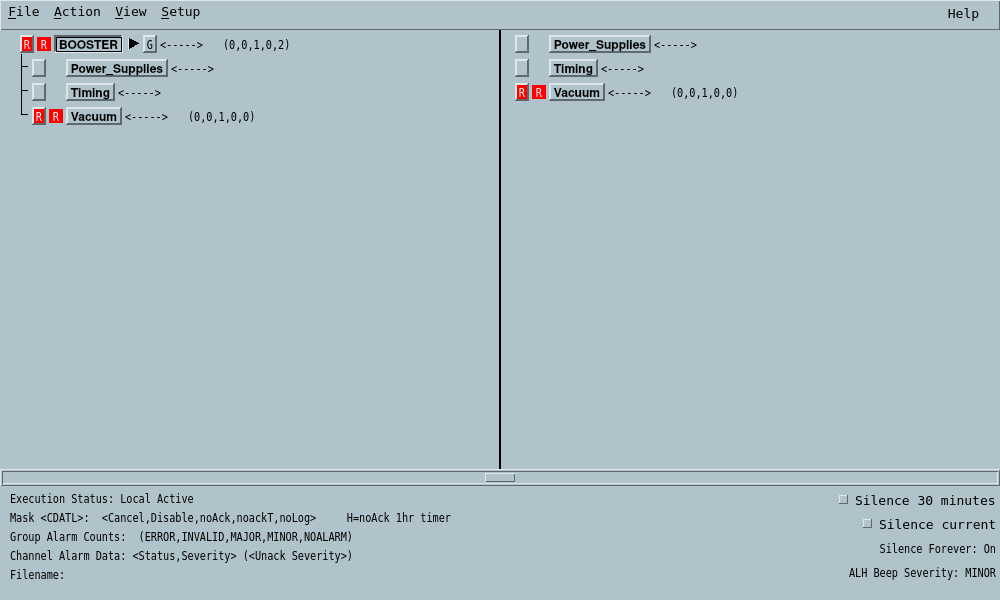
Interpret the indication
| State | Meaning |
|---|---|
| NO_ALARM | The monitored record is currently normal. |
| MINOR / yellow | Minor alarm severity. |
| MAJOR / red | Major alarm severity. |
| INVALID / white | Invalid record severity. |
| ERROR / white | QtALH has a connection/access error, its Channel Access alarm read failed (READ status), or it is waiting for an initial usable event. |
An alarm can be currently normal and still unacknowledged after a transient. Inspect both the current state and acknowledgement indication; Alarm lifecycle explains how they differ.
Acknowledge a channel or group
- Select the channel, or select a parent group to act on its descendant channels.
- Read the guidance and inspect the equipment condition as appropriate.
- Choose Action → Acknowledge Alarm or press Ctrl+A.
- Confirm the acknowledgement indication clears or reflects the remaining alarms.
Passive mode prevents acknowledgement. In global mode, the IOC must allow the write; failed acknowledgements remain visible. Acknowledging an active alarm does not clear the underlying alarm condition.
In global mode, a group acknowledgement also acknowledges Disabled and NoAck channels at the IOC, matching ALH. It writes their ACKS, and any configured $ACKPV, in the selected group and in each descendant subgroup that still has an unacknowledged alarm on a channel that is neither Disabled nor NoAck. The IOC acknowledgement is shared with other global clients. Shelved channels are skipped. To leave a masked channel's IOC acknowledgement unchanged, acknowledge the other channels individually.
Open guidance or a related process
- Hover over G to read the configured guidance text without opening a dialog. If guidance is a URL or file, the tooltip shows that configured reference; it does not fetch the external content. Click G or use Ctrl+G to open it.
- Hover over P to preview the command that will run. If several actions are configured, the tooltip lists their labels and commands, including any
MASTER_ONLYrestriction. Click P or use Ctrl+P to run the command or open its action menu. Hovering never launches a process. - Properties and action dialogs follow the selected group/channel. Selecting another node changes their target; background updates preserve unfinished edits where supported.
These previews work in both the modern and Motif appearances. Related processes run configured commands on your host; their syntax depends on the operating system. A leading medm executable is replaced with qtedm from PATH, keeping its arguments. The P tooltip shows this effective command, while the saved configuration retains the original text.
Continue with silence and filters or historical logs.